Case study 1
Digitizing a law firm: from email and remote desktop to a clear Microsoft 365 setup

Summary
The law firm worked via remote desktop, WhatsApp, and forwarded emails. Documents were physically tied to one computer in the office. Today each client has their own workspace in Microsoft 365, and the lawyer can access everything from anywhere — from a laptop, phone, or borrowed computer.
“I can now see exactly which tasks I assigned to my secretary and which she then completed. I can also work from anywhere, and most importantly I have access from my phone.” — Mgr. Romana Mrózková
Starting point
Mgr. Romana Mrózková’s law firm operated before our cooperation in a way that is fairly common at smaller practices. Core work functioned, but the system rested on older habits: files were stored locally on office computers, document access happened mainly via remote desktop, and communication between the lawyer and the secretary was split between email and WhatsApp.
Whenever something needed to be assigned, supplemented, or looked up, people often worked through email threads, forwarded attachments, and manually maintained folders. Requests were not tracked in one system, and it was not always immediately clear what was already done, what was in progress, and where the latest version of a document lived.
The same applied to scanning. Documents were scanned via the printer or a mobile app, then emailed, and only then manually filed into the correct folder. The process worked but involved unnecessarily many steps.
What we changed
We moved the firm into Microsoft 365 and structured it to match how the law firm actually works.
The guiding principle was: each client has their own workspace.
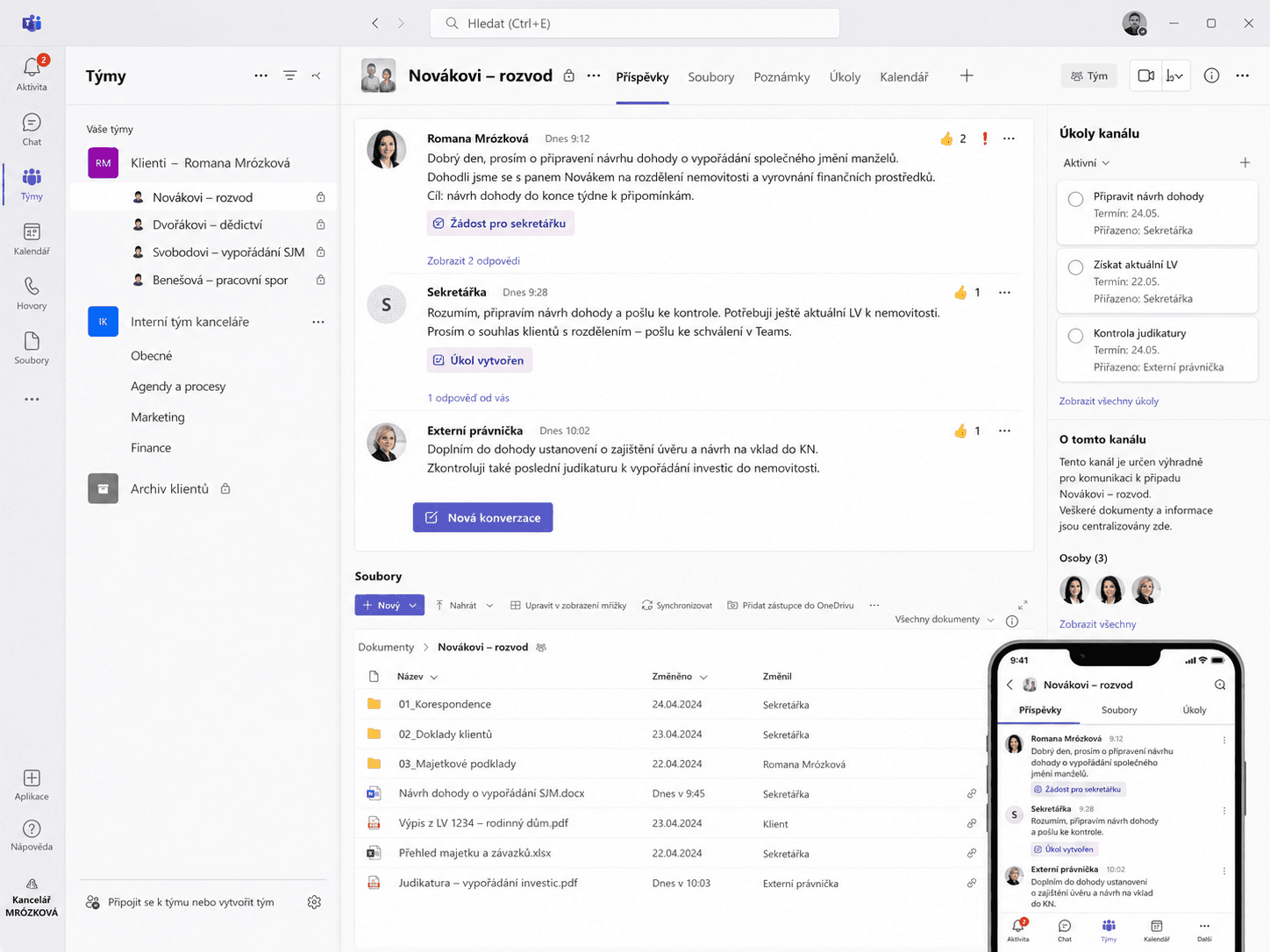
For each client we created a separate team in Microsoft Teams. That team has its own SharePoint space where all documents for that client matter are stored. Communication, requests, and files are therefore no longer scattered across email, WhatsApp, and local folders but are kept directly with the specific client.
In practice, when the lawyer needs something from the secretary, she @mentions her right in Teams on that client matter. The request surfaces in the secretary’s activity feed, and both sides can trace what was assigned, when, and in what context.
Access from anywhere, not only via one computer
One of the biggest practical shifts is moving from working “on one office computer” to cloud access through Microsoft 365.
Previously, documents were physically tied to office computers and remote access went through remote desktop. That meant the practice remained technically dependent on a specific location and specific infrastructure.
Today the lawyer can sign in to her work account from anywhere — from a laptop, a borrowed computer, or her phone. If she is away from the office, travelling, or on holiday, signing in to Microsoft 365 immediately shows her workspace, client teams, documents, and communication.
The difference is fundamental: instead of remoting into one computer, the firm has a cloud workspace that works from anywhere.
Documents and scanning
One practical change was simplifying work with scanned documents. Instead of scanning a document, emailing it, and then filing it manually, it can now be scanned straight into the correct SharePoint folder for the relevant client via the OneDrive app.
That removes several unnecessary steps from the process. The document is saved where it belongs right away, with no need to hunt for which email it arrived in or who still has to move it into a folder.
Working with an external lawyer
A major improvement also came when collaborating with another lawyer. Previously, she had to be sent the necessary documents and information separately — more emails, more attachments, and a greater risk that someone would work from an outdated version of a document.
Now she can be added to the specific client team with one click. She immediately gets access to all relevant documents, communication, and case context — and only to what she should actually see.
AI as a helper in legal work
Part of our cooperation was demonstrating practical use of AI tools for legal work. We focused especially on longer documents, judgments, and legal materials.
We showed how tools such as NotebookLM and Gemini Deep Research can speed up orientation in documents, drafting summaries, and finding answers grounded in specific sources.
In legal work it is important not to treat AI as an authority. Used appropriately, it can significantly speed up work with materials, especially where you need to move quickly through a larger volume of text and find relevant passages.
Outcome
- documents available securely from anywhere via Microsoft 365
- each client has their own space in Teams and SharePoint
- communication happens directly on the specific matter
- requests to the secretary are easier to trace
- an external collaborator can be added with one click
- document scans are saved straight into the correct client folder
- less manual administration, less forwarding, less searching
Tools used: Microsoft 365, Microsoft Teams, SharePoint, OneDrive, NotebookLM, Gemini Deep Research